Access to WiFi should be automatically provisioned when either signing into your device with your eduPASS credentials, OR once you have added your eduPASS account as a “Work or School” account as per “Setup a Windows Laptop for BSC”
Note it may take a few minutes after doing so for the WiFi settings and certificates to be downloaded and assigned to your device.
ALTERNATIVELY – If the eduSTAR Wifi network is asking for credentials, you can use the following process to connect.
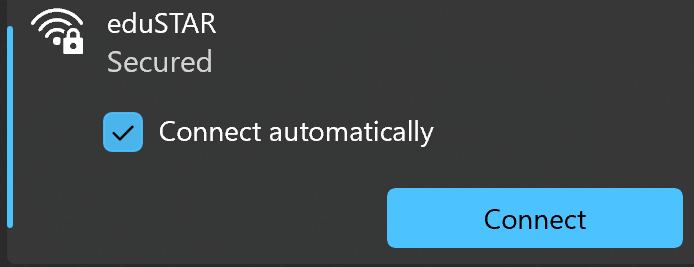
1). Click on theInternet Accessicon in the tray near the clock.
2). Choose EduStar and the click connect.
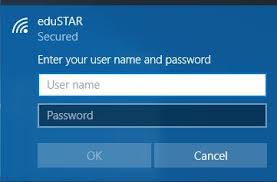
3). You will then be prompted for Credentials
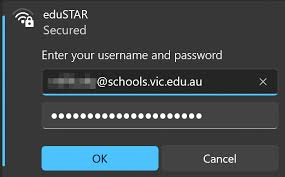
4) Enter the Students Department of Education Username and Password which was sent to the parent email address you provided on the student enrolment form. For students in other year levels – you should already have this information
Example Username:STU0001@schools.vic.edu.au
Example Password: Terry2005
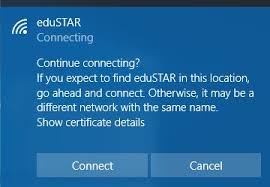
5). If promted with “Continue Connecting” Click the Connect button.