The following guide will assist students to ensure they are able to Print at Bellarine Secondary College. It is important to note, that the following process MUST be done while onsite at the college and connected to the eduSTAR WiFi Network.
Click on the link below, relevant to the Campus that you require printers for. If you need both, you will need to follow these instructions for both options.
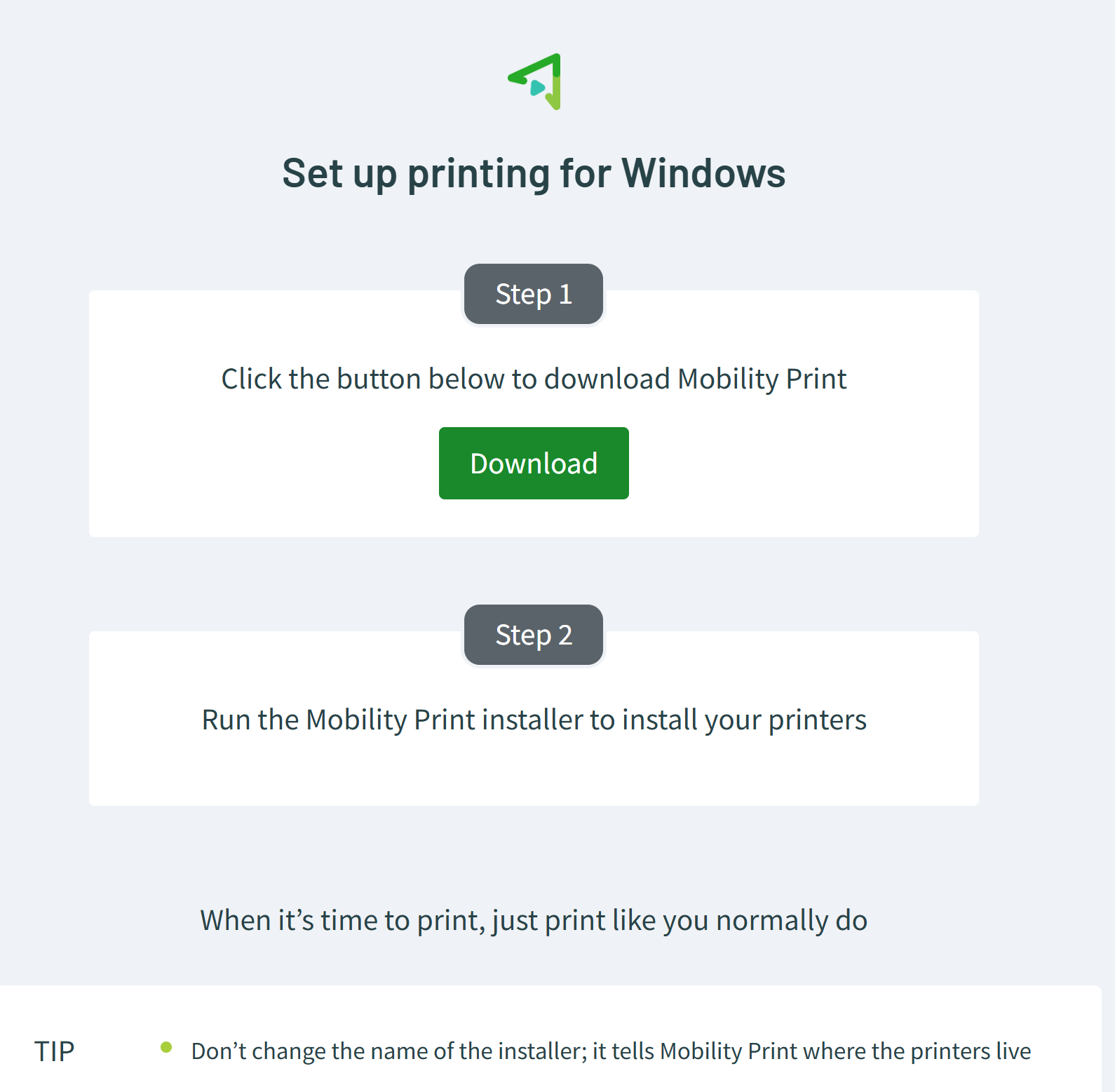
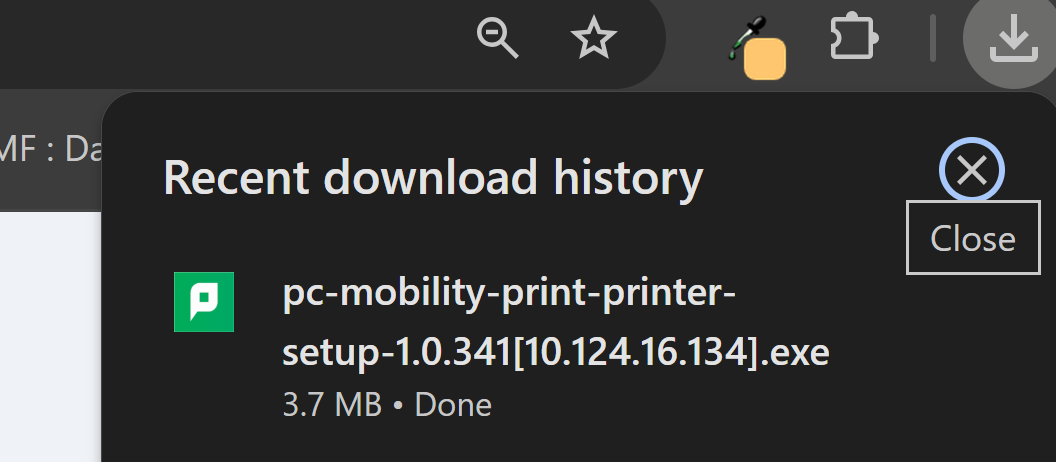
Click on the “Download” button to download the installer.
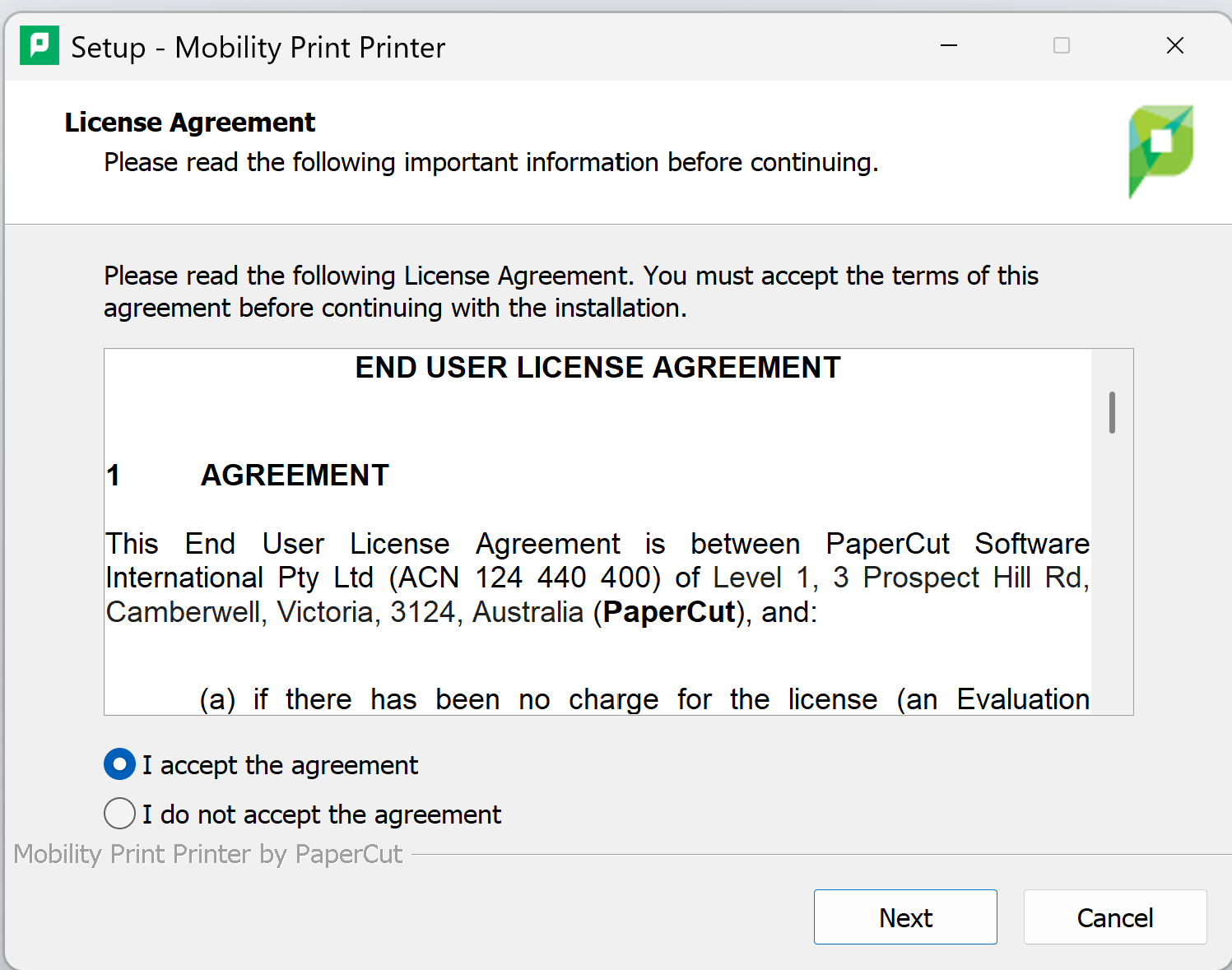
After running the downloaded file the following screen should appear. Click on the Next Button and follow the prompts to allow it to install
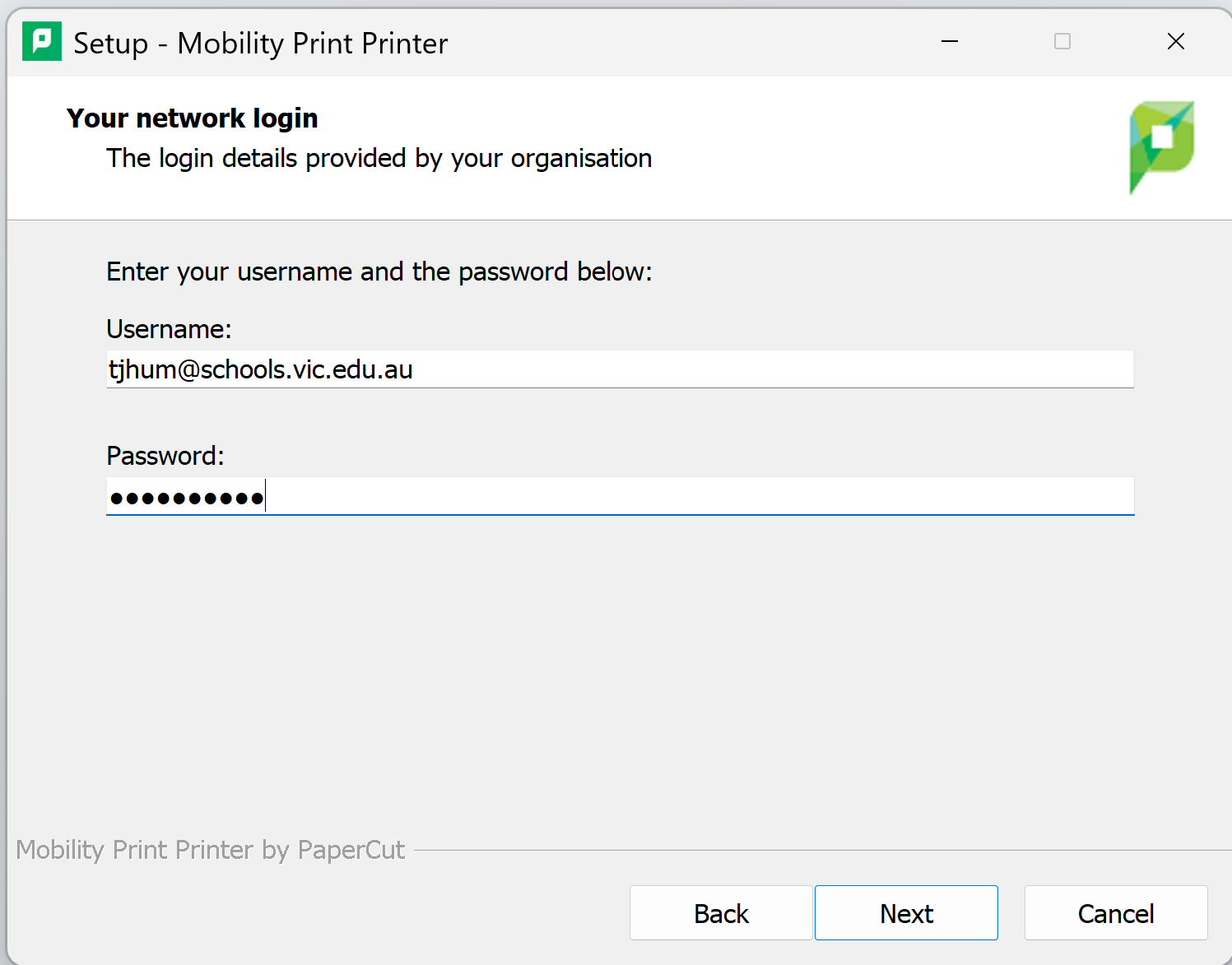
The following screen should appear, this is where you will sign in with your @schools.vic.edu.au credentials.
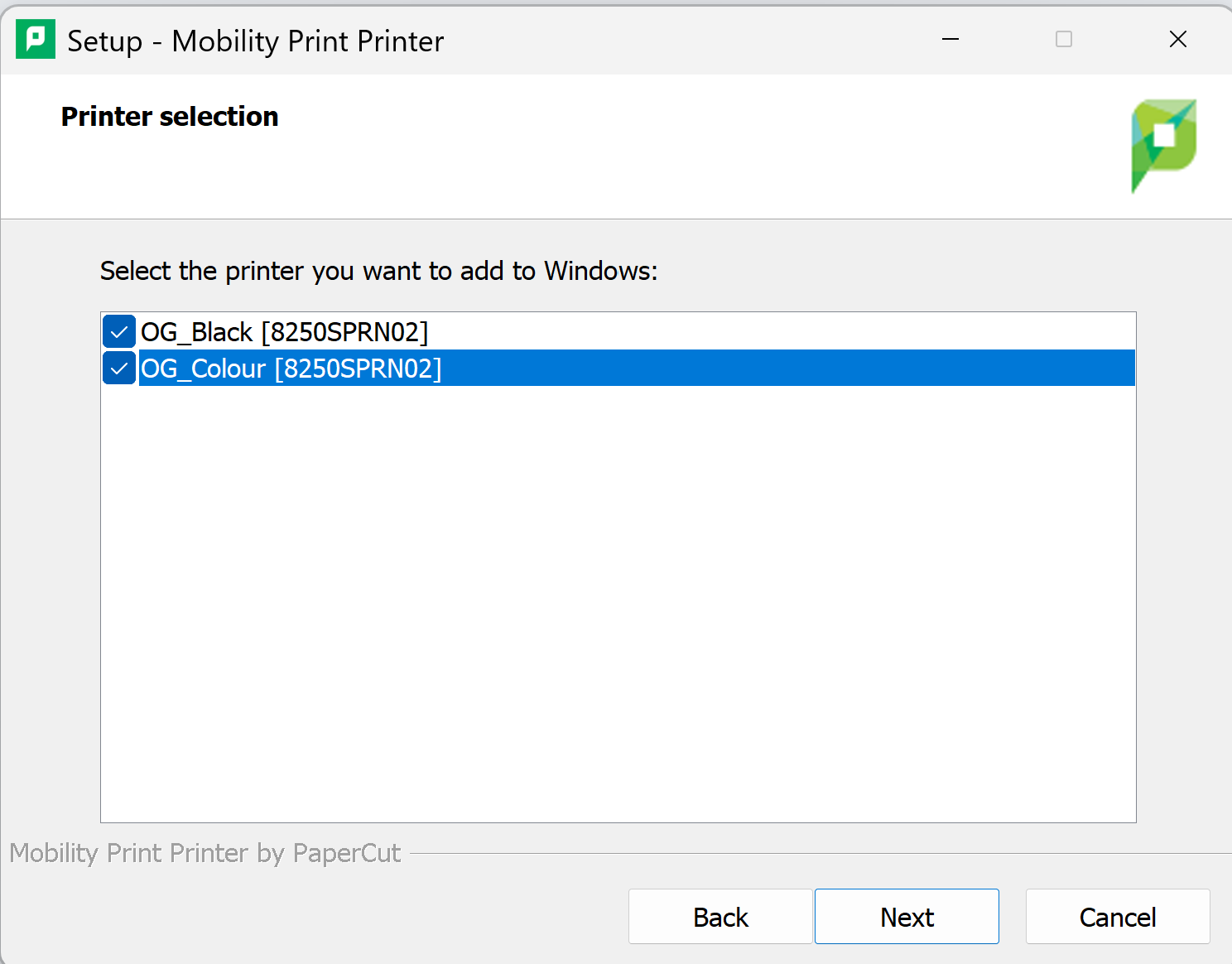
After Signing in using your @schools.vic.edu.au email address and password, select the printers that you would like to install, and click, next.
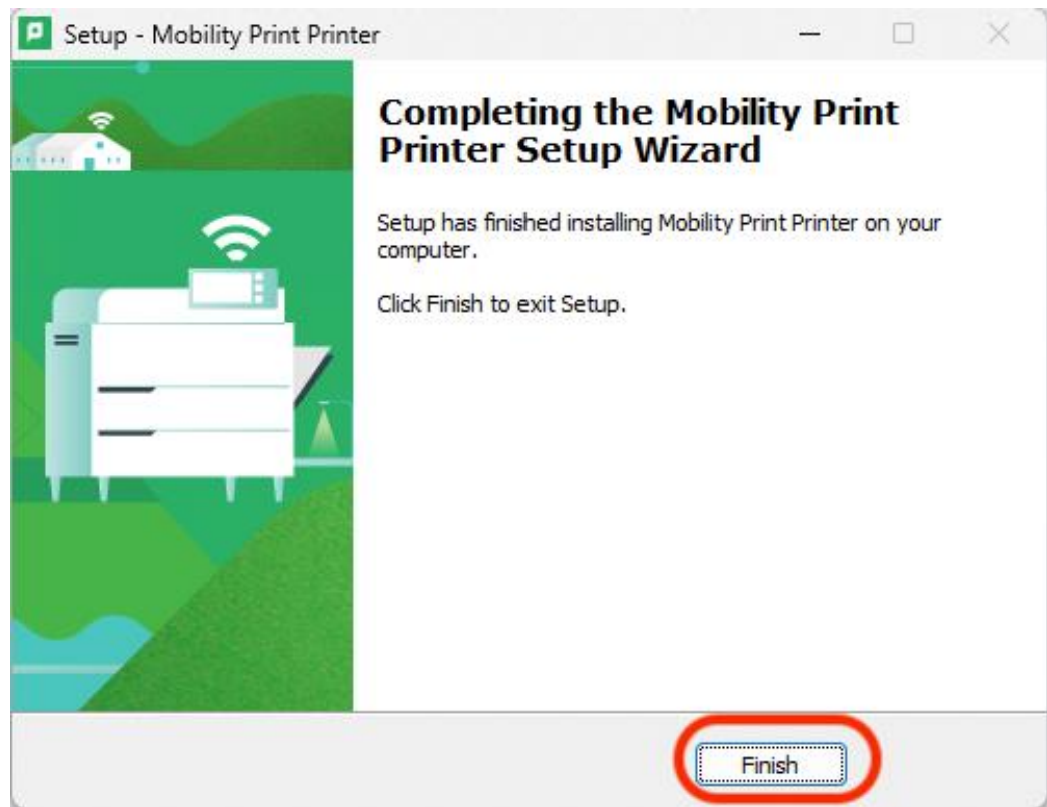
A similar screen to the following should appear, and start installing the printers that you are assigned to. Once completed you will now have your printers installed and be able to print.