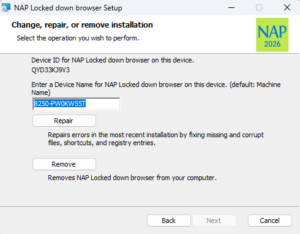
NAPLAN Locked Down Browser Installation
All year 7 and 9 students participating in NAPLAN online must install and test the Locked Down Browser (LDB) on their BYOD device prior to the 1st of March to allow for any issues to reported and resolved.
Year 7 and 9 students will need to be familiar with opening the Locked Down Browser (LDB) before test days. If you have previously installed the LDB, installing the latest version will automatically upgrade your version.
All 4 of the below steps MUST be completed. The estimated time for the download, install and test is only 5-10 minutes.
- DOWNLOAD the Locked Down Browser to your device. A Guide is shown below.
- INSTALL the downloaded program/app.
- OPEN the Locked Down Browser, to verify you can open the program/app.
- TEST using the test menu option, including sound with headphones.
If you have any problems installing the Locked Down Browser, please stop by the ICT Department for Assistance, during Recess or Lunchtime.
Windows 10 / Windows 11
- Please click download below

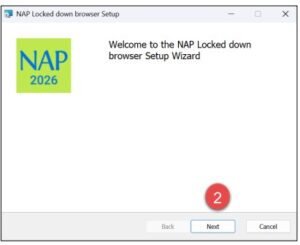
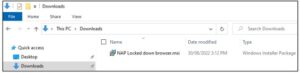
2. Please click on Open file at the bottom of your web browser, if it is not listed there, browse to your downloads folder on your computer and find NAP Locked down browser.
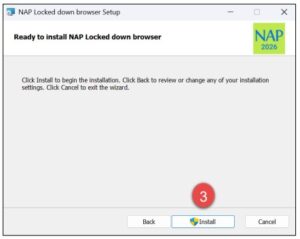
3. Click on I accept the terms in the license agreement then click on install

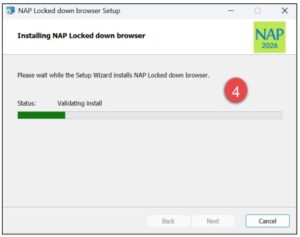
4. Click on Yes in the window that asks you to make changes

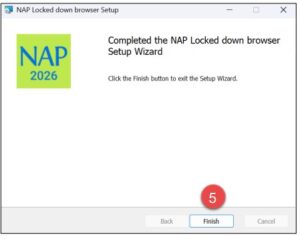
5. Click the finish button to finish the installation
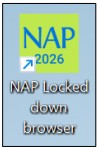
6. Locate the locked down browser on your desktop, you have successfully installed the Locked Down browser for NAPLAN