The following guide is intended to allow students to setup their own device, It is assumed that the device has already been setup as per the Manufacturers instructions. Alternatively, if your setting up a new device, and it is asking for a Microsoft Account, You can use your own personal account (@outlook.com etc) OR your @schools.vic.edu.au account. Details for this account would have been sent to PARENT A on Compass late January. (Check your Junk/Spam Folder) DO NOT ATTEMPT TO SETUP THE DEVICE USING YOUR @bsc.vic.edu.au CREDENTIALS !!
1.Click on the Start (or Windows) Button
2. Open the Settings App
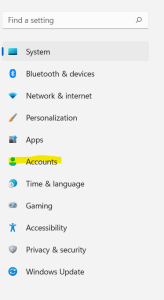
3.From the settings app, choose the Accounts option
4.Find this option on the next screen
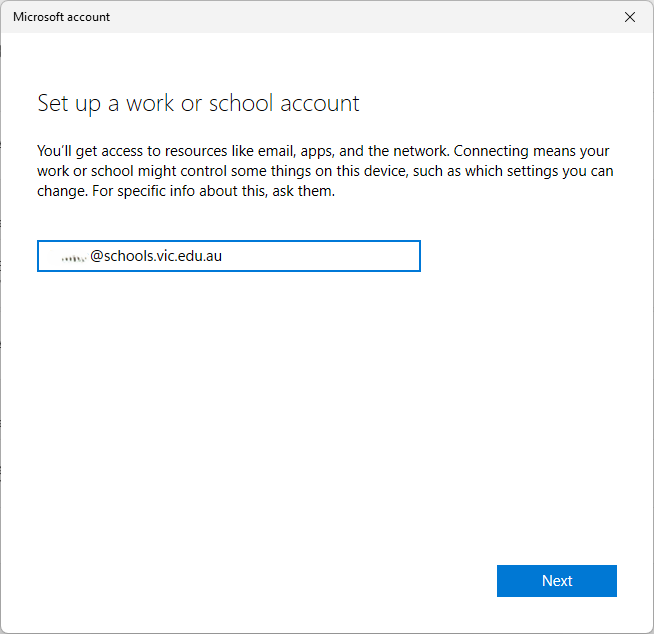
5.Enter the students Department of Education Username and Passwordwhich was sent to the parent email address you provided on the student enrolment form. For students in other year levels – you should already have this information
Example Username:STU0001@schools.vic.edu.au
Example Password: Terry2005
DO NOT ATTEMPT TO SETUP THE DEVICE USING YOUR @bsc.vic.edu.au CREDENTIALS !!
6.Enter the password for this login. This is the same password as your child uses for Pulse, Wellio, and other Department of Education Provided Software.
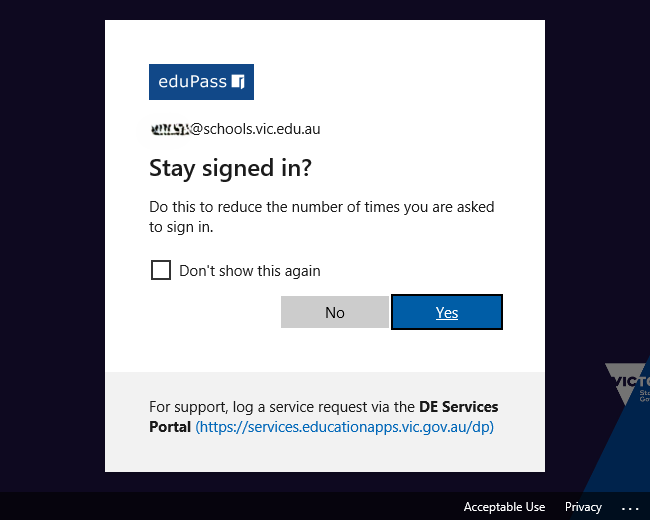
7.This screen will appear while the device is being configured, select YES
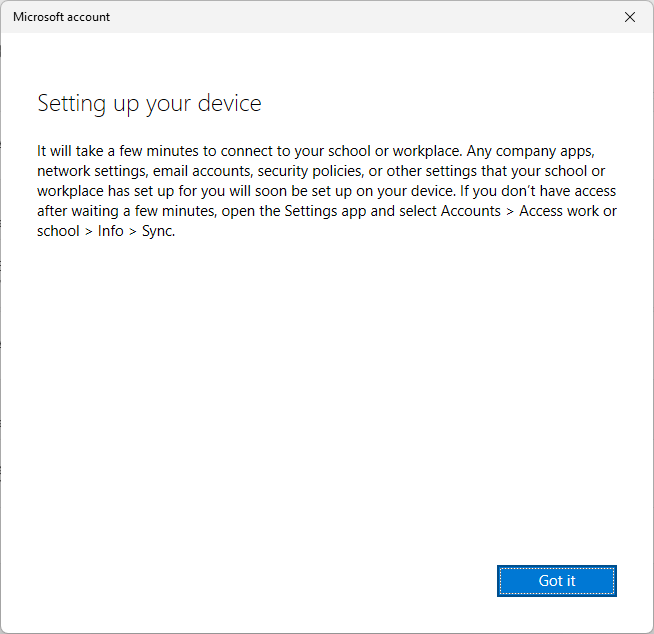
8.Once this screen appears, the process is complete. Over the next hour or so the final settings for the device will be pushed out – so leave the device on for an hour or so.
Nothing further is required – the device is now connected to the school wireless.