This guide is intended to assist Staff and Students to install, and Login to Microsoft Teams, should it not be installed on the computer you’re using.
There are a couple of different methods that can be used to install Microsoft Teams, should it not be already available on the computer that you’re needing to use.
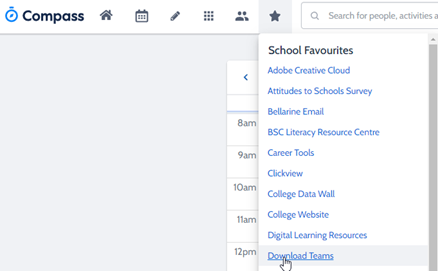
The first, and more than likely the simplest method, is to login to Compass, and download it from the Favourites “Start Icon” in the top menu.
Login to Compass, on the “Star” Icon there is an option to “Download Teams” click on this and the download will start.
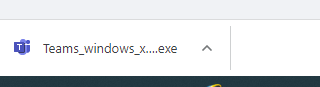
Once the download has completed, if your using Google Chrome as your browser, you will see at the bottom left hand side of the screen the following icon, Click on the Icon and Microsoft Teams will begin to install for you, note that this may take a moment to initialise.
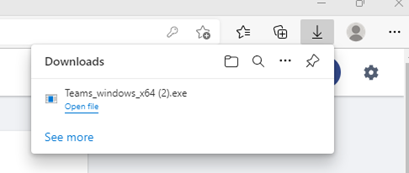
If your using Microsoft Edge, the download will show at the top right-hand side of the page, and when completed, you will need to click on the “open file” option to start the install. Once again, this may take a moment to initialize.
Once installed, Teams will automatically login with your details most of the time, if for whatever reason it asks you to login, please ENSURE your logging in with your “@bsc.vic.edu.au” email address, and the password that you use to login to your computer or Compass.