Microsoft Office (Word, Excel, Powerpoint etc) is provided for you FREE of charge by the Department Of Education. There is no need to purchase Microsoft Office. This guide will show you how to download, and install Microsoft Office from the Department of Education Office 365 Tenant.
1). Click to open the Microsoft Office website – My account
On the TOP RIGHT hand side of the page click on the “Sign In” Button – DO NOT Click on the Sign In button in the MIDDLE of the page. This is for Microsoft Co Pilot and NOT what we need.
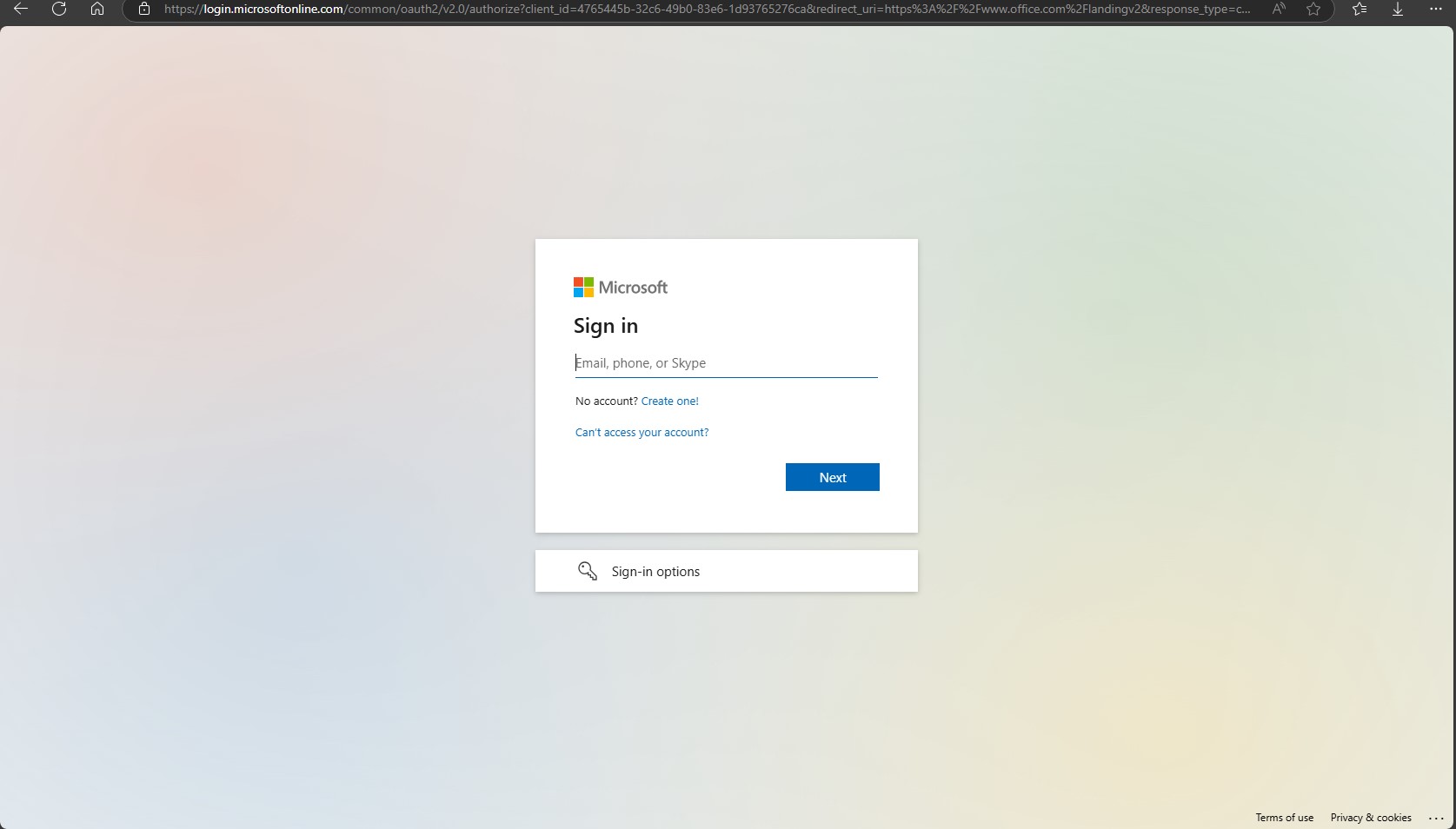
2). The following screen should then appear, asking you to sign in.
Students:
Sign in with your Education Department Credentials – I.E abcde@schools.vic.edu.au
Staff:
Sign in with your Edupass Credentials – I.E firstname.lastname@education.vic.gov.au
Click on the Install Office dropdown menu top right and click on Office 365 Apps. Click “Save File” if you are prompted to download the Office 365 setup file.
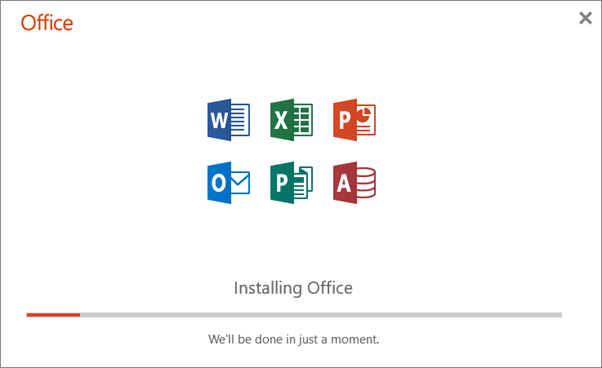
Double click to run the “OfficeSetup.exe” file in your downloads folder. Office will start installing as per the screenshot to the righ.
Once Office has been installed, you will receive a screen similar to that on the right. Click on close, your Office Products should now be ready to use.